
Turn any photo into a new art style in one click
Drag and drop an image here
Or tap anywhere in this card to upload. PNG, JPG and WEBP are supported.
PNG, JPG, WEBP
Choose a preset and restyle your photo fast
This AI style transfer app is built for people who already have an image they like and want a better look for publishing, sharing, pitching, or testing creative directions. Instead of learning prompts, you can jump straight from upload to result.
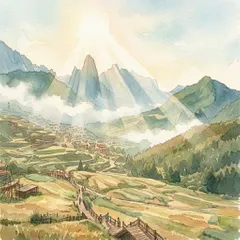
Storybook Watercolor
Soft painted textures, warm color wash, and calm editorial mood.
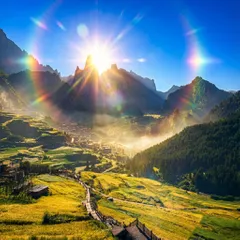
Cinematic Animation
Polished animated-film look with dramatic light and rich color.

Comic Ink
Bold outlines, halftone shading, and high-contrast panel energy.
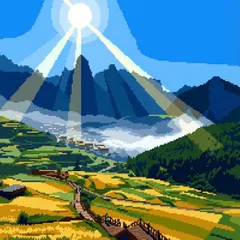
Retro Pixel
Clean grid-based pixel art with a limited game-style palette.
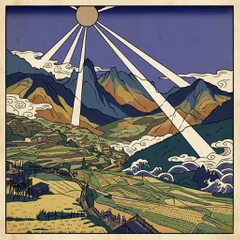
Ukiyo Print
Flat perspective, carved-line detail, and traditional print feeling.
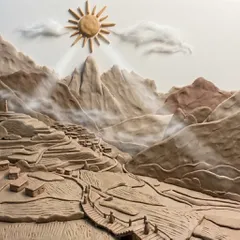
Clay Craft
Soft handmade clay surfaces with tactile stop-motion charm.
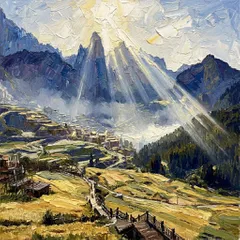
Impasto Oil
Museum-style oil painting with thick brush texture and depth.
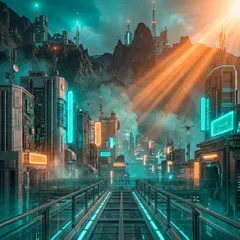
Cyber Neon
Futuristic contrast with neon glow, moody haze, and tech noir color.
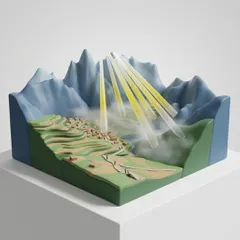
Designer Toy
Commercial collectible look with smooth surfaces and studio light.
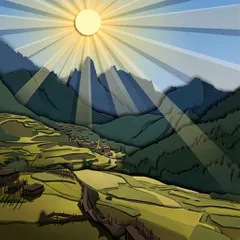
Paper Cut
Layered paper craft depth with shadowed cutout shapes.
Why users pick this AI style transfer workflow
Restyle a photo in seconds without writing prompts
If you know the look you want but do not want to build prompts, this app gives you a faster path. Upload one image, pick a preset style, and generate a polished result in one click.
- One photo in
- Preset styles instead of trial-and-error prompting
- One-click generation
Keep the subject you like, change the mood and finish
Style transfer is best when you already like the photo, framing, or composition and only want a new look. The result keeps the scene recognizable while changing the art direction.
- Preserve the person, product, or scene
- Keep original framing and layout
- Change texture, palette, material, and mood
Popular styles for social posts, thumbnails, products, and campaigns
Use Storybook Watercolor for softer editorial visuals, Comic Ink for bold graphic energy, Cyber Neon for futuristic campaigns, or Clay Craft and Designer Toy for playful commercial looks.
- Watercolor and cinematic animation looks
- Comic, pixel, ukiyo, and paper cut presets
- Clay, toy, oil, and cyber aesthetics
What you can do with AI style transfer
Use this workflow when the base image is already good and the main goal is to change the visual style for publishing, testing, or creative iteration.
Turn portraits, cover images, thumbnails, and creator photos into a recognizable visual style without reshooting or rebuilding the image.
Start from one approved image and try multiple visual directions quickly when you need to compare mood, tone, and creative direction before publishing.
Restyle product photos, lifestyle imagery, or illustrations into looks that feel more premium, playful, artistic, or genre-specific for ads and landing pages.
How to use AI style transfer
Upload one image, choose the preset style that matches your goal, then generate and compare the result.
Upload your photo
Start with one PNG, JPG, or WEBP image that you want to transform into a new style.
Choose the look you want
Pick a preset such as Storybook Watercolor, Cinematic Animation, Comic Ink, Cyber Neon, Clay Craft, or Paper Cut.
Generate, compare, and download
Run AI style transfer, compare the original and restyled result side by side, then download the version you want to use.
Best use cases for AI style transfer
AI style transfer works especially well when you want to keep the same person, product, or scene but present it in a different visual language. A portrait can become a watercolor illustration, a product shot can become a designer-toy render, and a thumbnail can shift into comic ink or cyber neon without rebuilding the composition from scratch.
That makes style transfer useful for creators, ecommerce teams, designers, marketers, and founders who want fast visual variation from one approved image. Instead of starting over with a new generation, you can reuse what already works and simply change the aesthetic direction.
How to get better AI style transfer results
For the cleanest results, start with an image that has a clear subject, readable silhouette, and good lighting. Then choose a preset that matches the feeling you want: Storybook Watercolor for softer editorial visuals, Cinematic Animation for polished dramatic scenes, Comic Ink for bold graphic contrast, Clay Craft for tactile character work, or Paper Cut for layered illustration depth.
If you want to keep exploring after style transfer, you can move into the broader AI Image workflow for prompt-guided edits or use the AI Image Upscaler to sharpen and enlarge the final output. That gives you a simple path from one source photo to a finished stylized asset.
AI Style Transfer FAQ
Helpful answers about presets, results, input images, and credits.
Still have questions? Email us atsupport@berrioo.com
Continue in related Studio apps
Open related workflows for broader image editing, output enhancement, anime looks, avatar styling, and deeper Nano Banana refinement.
Create and edit images in one shared workflow across top Studio image models.
Enhance one image with Recraft, Google, and Clarity AI Image upscaler options.
Create creator, team, and character avatars with image generation, style transfer, and enhancement workflows.
Create anime portraits, characters, and stylized scenes from prompts or source images.
Use Nano Banana Pro for deeper multi-step image editing and refinement work.
Upload your photo and try AI style transfer now
Choose the preset that fits your brand, post, thumbnail, or campaign, then generate a new stylized version in one focused workflow.